Install the desktop app
Open the product on your Mac
YOUR MAC, WITHIN REACH
View connected devices and screens in your browser, then get remote assistance whenever you need it.
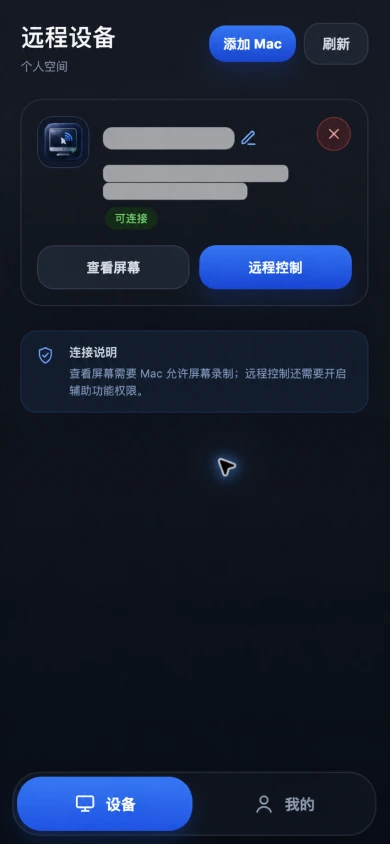

The screenshots show the real product interface so you can understand the connection flow in advance.
Open the product on your Mac
Follow the prompts to get ready
Select your Mac in the browser
View a screen or get assistance
HOW IT WORKS
Follow the prompts to prepare your Mac, then find and connect to it in your browser.
Download SkyComputerUse Mac Agent and install it on the Mac you want to connect to.
Open SkyComputerUse Mac Agent and follow the page prompts to complete system permissions.
Select a connected Mac in your browser to view its screen or get remote assistance.
BUILT FOR EVERYDAY ACCESS
Common tasks, from finding a device to getting help with it, live in one clear product flow.
Open a connected device in your browser and see its current screen.
Get help when you need to work through a prompt or everyday task.
View the Mac’s connected displays together and find the screen that matters.
GET STARTED
Version 0.1.0 · macOS 12+ · Apple Silicon and Intel
SHA-256: be244fb2e2b7a3f95ccfee168cfedcc99c811d53d8f312a7e64c8434b54401d9
This is a controlled UAT release. Developer ID signing and notarization are not complete. On first launch, macOS may ask you to choose “Open Anyway” in Privacy & Security.
Read the guide